 NoaLingua
 Feature
The NoaLingua bilingual PDF translator
A PDF as a bilingual book, with every word clickable
NoaLingua opens a PDF two ways. The Reader lays the original and its translation side by side with paragraphs aligned, showing what percentage of the text you already know. The Viewer keeps the document exactly as it looks and lays a transparent, clickable text layer over it.
Fit
Who Bilingual PDF is for
Choose it for the workflow it actually supports, not for a promise the product does not make.
Best for
- Learners who want a text-based PDF rebuilt sentence by sentence with the translation aligned beside it.
- People studying shorter documents where bilingual reading matters more than preserving the original page layout.
Not the right fit for
- Scanned documents without a text layer, image-heavy layouts, or files whose exact typography must be preserved.
- Documents longer than the stated import limit or material that must never be sent to a chosen cloud translator.
First-hand evidence
What the NoaLingua evidence proves
Product source and version reviewed · version 0.2.36
Observed: The capture shows a real text PDF rebuilt into two aligned columns, with German sentences beside their English translations.
Evidence boundary: It does not demonstrate OCR for image-only scans or preservation of the source page design; those are outside this mode.
-
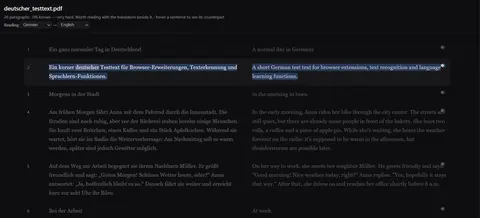
Or side by side The same document in two columns, each sentence level with its translation.
These are plain product captures, taken before the extension was renamed. The only altered pixels are the product's own name in the corner, repainted to NoaLingua; the exact patches are documented in the repository screenshot script and come out when the captures are re-cut.
How to use it
How to use Bilingual PDF in NoaLingua
- 1
Open any PDF in Chrome
Two buttons appear in the bottom-right corner — that corner because Chrome’s own toolbar takes the top and the page controls take the middle of the bottom.
- 2
Choose Make a bilingual book, or Open in NoaLingua
The first gives you the two-column Reader. The second gives you the Viewer, which preserves the document’s real layout.
- 3
Confirm the permission prompt the first time
Chrome asks for document access at that moment — never at install. Until you press one of these buttons the extension has exactly the access it always had.
- 4
Click words as you read
Same card, same dictionary, same Save. Words are already coloured by how well you know them.
Mechanism
Why NoaLingua behaves this way
Why the Viewer does not re-draw the page as HTML
Re-rendering a PDF as HTML is what destroys columns, tables and figures — it is the reason most in-browser translation of documents produces something unreadable.
Instead the Viewer draws each page to a canvas, pixel for pixel as the document specifies, and lays a transparent text layer precisely on top. Every word in that layer has its own box, so it can be clicked, hovered, coloured and marked, while what you see is the untouched original. Pages render and release as you scroll, and zoom and fit-width behave normally.
Why the permission is requested at the button, not at install
An extension page runs on its own origin, so fetching an ordinary https://…/file.pdf is a cross-origin request — and almost no document server sends the header that would allow it.
Chrome therefore has to ask. The request is deliberately deferred until you press the button, so installing NoaLingua never presents a broad access prompt, and the permission is only ever used to read the document you just asked for.
Why translation arrives in batches
The Reader translates in series rather than all at once, so a long document becomes readable from the beginning before it has finished. Paragraphs are aligned so the original and its translation start at the same height, and hovering a sentence highlights its counterpart in the other column.
Common questions about NoaLingua
What is the difference between the Reader and the Viewer?
The Reader is for reading a document in two languages — two columns, aligned paragraphs, a coverage percentage. The Viewer is for documents whose layout matters — it shows the original exactly and makes the words clickable. Both save into the same deck.
Can I import my own text rather than a PDF?
Yes. Open the Reader without a selection and you get an import field that accepts .txt, .srt, .vtt, .md and pasted text up to 400,000 characters.
Does it show how hard the document is?
The Reader shows coverage — what percentage of the text is made up of words you already know — which is a more useful number than a reading level, because it is about your deck rather than an average reader.
More NoaLingua features to read next
Bilingual PDF is on the free plan. So is everything else.
Free, with every feature. No account, nothing to cancel, and your deck stays on your machine.
Add to Chrome — Free Add to Chrome Opens the Chrome Web Store listing NoaLingua — beyond dual subs: video, web, PDF — free, no account, Chrome 138 or newer.- Free, and not a trial Every feature on the free plan — both PDF modes, shadowing, all 30 practice formats.
- No account, no email Nothing to sign up for and nothing to cancel. There is no login screen at all.
- Two dropdowns to set up Pick what you are learning and what you want translations in. That is the whole setup.
- Your words stay yours Export to Anki, CSV, a spreadsheet or a full JSON profile — free on every plan.