 NoaLingua
 Feature
NoaLingua shadowing and speaking practice
Listen, pause, repeat — with the pause handled for you
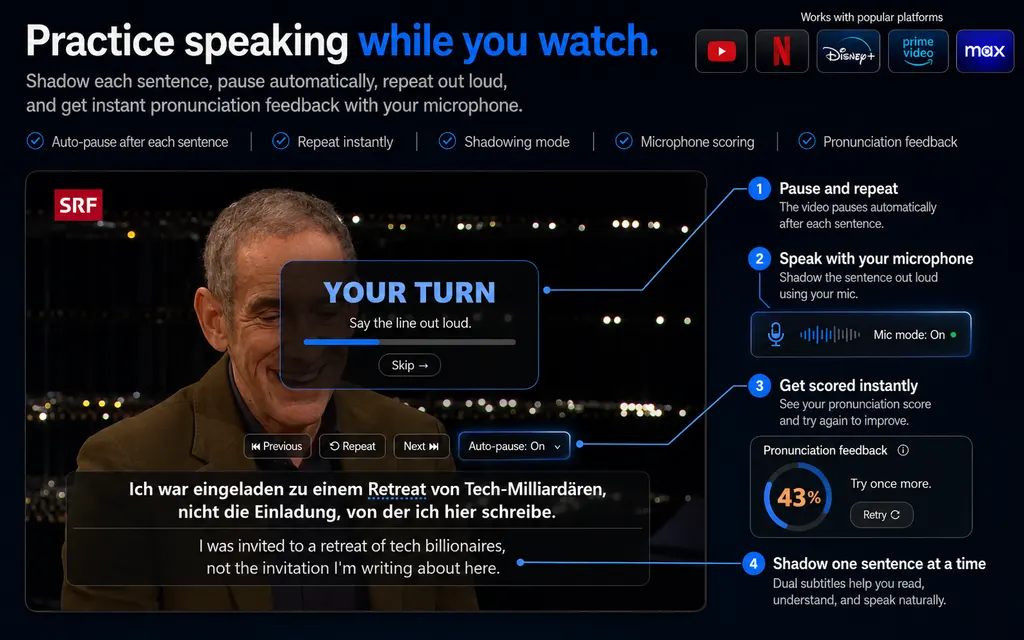
Ctrl+H turns any video into a shadowing session: each sentence plays, the video stops, and you get a pause longer than the sentence itself to repeat it. Say It Back goes further and listens, showing which words did not come through and keeping the score — but never the audio.
Fit
Who Shadowing & Say It Back is for
Choose it for the workflow it actually supports, not for a promise the product does not make.
Best for
- Learners who want sentence-sized listening and speaking loops inside material they already understand.
- People who use missed-word feedback as a practice cue rather than as a clinical accent score.
Not the right fit for
- Anyone needing phoneme-level coaching, a certified pronunciation assessment or human feedback from a teacher.
- Quiet environments where speaking into a microphone is impractical, or browsers without speech recognition for the language.
First-hand evidence
What the NoaLingua evidence proves
Product source and version reviewed · version 0.2.36
Observed: The two captures show the automatic speaking turn and a separate Say It Back result with a percentage and missed words marked in the line.
Evidence boundary: The percentage reflects browser speech recognition against the expected words. It is not phoneme analysis, an accent grade or a medical assessment.
-
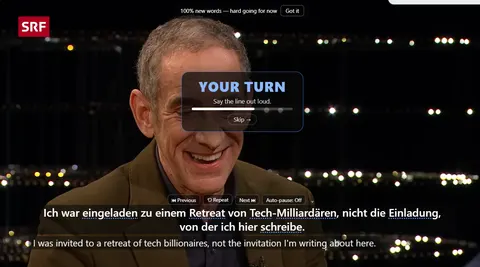
Your turn The video pauses on its own and holds while you repeat the line. No scrub bar involved. -
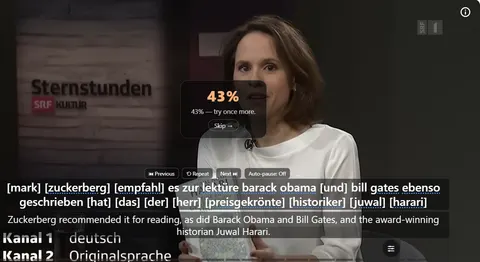
Scored, word by word A score, and the words that did not pass shown in brackets inside the sentence itself — so what you have is a specific syllable to fix.
These are plain product captures, taken before the extension was renamed. The only altered pixels are the product's own name in the corner, repainted to NoaLingua; the exact patches are documented in the repository screenshot script and come out when the captures are re-cut.
How to use it
How to use Shadowing & Say It Back in NoaLingua
- 1
Press Ctrl+H to shadow the whole video
A panel appears reading Listen. The sentence plays, the video stops by itself, and the panel changes to YOUR TURN with a countdown.
- 2
Repeat during the pause
The pause is deliberately longer than the sentence, because repeating in a foreign language is always slower than people expect. Finished early? Press Skip.
- 3
Use H to drill one line instead
A magnifying glass over a single sentence: hear it, pause to repeat, hear it again. Where the transcript knows the boundary, the clip is cut exactly — no chopped-off last word.
- 4
Press Y for Say It Back
The sentence plays, the microphone opens, and the panel writes out the words it hears in real time. You get a percentage, and the words that did not pass appear in brackets inside the sentence.
Mechanism
Why NoaLingua behaves this way
Why the pause is longer than the sentence
Measured against how people actually shadow rather than how long the audio is. Producing a sentence in a language you are learning takes longer than hearing it — often considerably — and a pause matched to the audio length simply cuts you off mid-attempt.
Why the video never jumps ahead while you practise
Any mode that stops the video on your behalf owns the subtitle box until it lets go. This was the most frequently reported problem in the product’s history, and the fix was structural: every component that writes into the box has to ask the same question first — is somebody holding the screen right now.
What Say It Back keeps, and what it refuses to keep
It stores the score and the specific words that did not pass, per attempt. That is enough for the Learn tab to show a pattern — that a particular word has failed six times running is a concrete, solvable problem in a way that a single failed attempt is not.
The audio itself is never recorded anywhere. If your device has no local speech pack you can enable online recognition, and in that case the sound of your voice — and nothing else — goes to Chrome’s speech service. Subtitles, video and your saved words do not.
Common questions about NoaLingua
Is my voice recorded or uploaded?
Never recorded. Scores and missed words are kept as numbers and text. If you explicitly enable online recognition, the audio stream goes to Chrome’s speech service for recognition and nothing is stored by NoaLingua.
Does shadowing work on Netflix?
Yes. Shadowing operates on the sentence currently on screen, so it does not need the full transcript that Netflix withholds.
What if I want to practise without being scored?
Ctrl+H shadowing requires no microphone and no speech pack at all. It is just listen, pause, repeat — and it is the mode most people use most of the time.
More NoaLingua features to read next
Shadowing & Say It Back is on the free plan. So is everything else.
Free, with every feature. No account, nothing to cancel, and your deck stays on your machine.
Add to Chrome — Free Add to Chrome Opens the Chrome Web Store listing NoaLingua — beyond dual subs: video, web, PDF — free, no account, Chrome 138 or newer.- Free, and not a trial Every feature on the free plan — both PDF modes, shadowing, all 30 practice formats.
- No account, no email Nothing to sign up for and nothing to cancel. There is no login screen at all.
- Two dropdowns to set up Pick what you are learning and what you want translations in. That is the whole setup.
- Your words stay yours Export to Anki, CSV, a spreadsheet or a full JSON profile — free on every plan.